
Why You Need Shortcuts in Your Workflow
by Vincent Bekong
What is a shortcut?
A shortcut is a series of keystrokes on a computer that achieves a task in one action instead of 2 or more. At least thats my head cannon. According to Google it is a "method to quickly access files, folders, or programs (often a desktop icon) or a combination of keyboard keys used to perform tasks faster than using a mouse."
I always say don’t take shortcuts in life…unless productivity is involved. YouTube is one of the biggest platforms of online content consumption in today’s internet scape but what the hell does YouTube have to do with a discussion about shortcuts?
Well, we consume a lot of productivity content. Why? TO BE PRODUCTIVE! From Best Note Taking App for iPad Pro to The Most Powerful Productivity App I Use — Notion, content that covers working faster and efficiently is growing exponentially, especially in the wake of COVID-19 and the rise in remote work.
This is where the shortcuts come in. Some common ones we use in our everyday workflows are Ctrl + Z (Undo), Ctrl + C (Copy), and Ctrl + V (Paste) but that’s beginner stuff. Artists, illustrators, programmers, and photo editors, to name a few, use a myriad of shortcuts to achieve their creative goals. I’m not a content creator, why do I need shortcuts?! BECAUSE IT’S FUN!
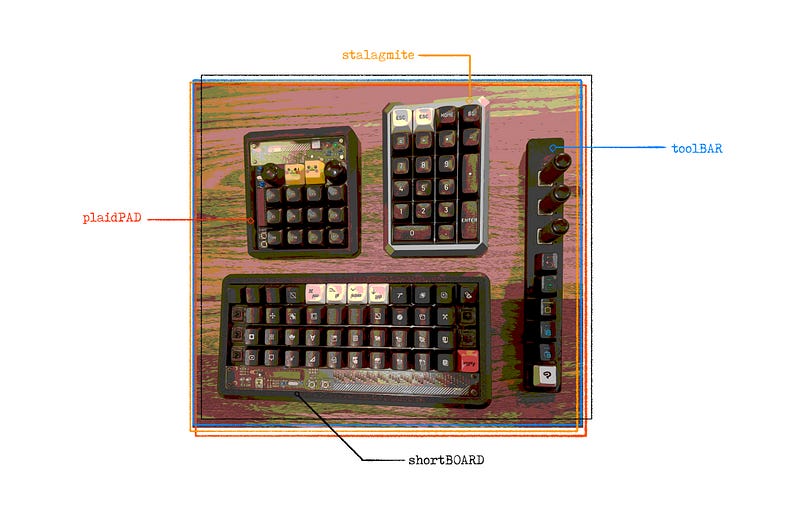
Well besides that, it makes my workflows, flow. Time is saved because the number of mouse clicks is greatly reduced. For instance, browsing chrome, damn, even navigating my Mac Mini, has been relegated to a programmable macropad. My enthusiasm with shortcuts complements my shortcut usage.
Why?
Why? I’ll answer with a question. What is the point of using shortcuts if you have to give yourself Carpal tunnel trying to figure out which ctrl key to press or whether you press shift or the alt key first? Programming these numerous shortcuts to specific keys on keyboards or macropads reduces the time I take to performs tasks like opening and quitting apps, saving documents, joining a chat on discord, or even entering my password at the click of a button.
How?
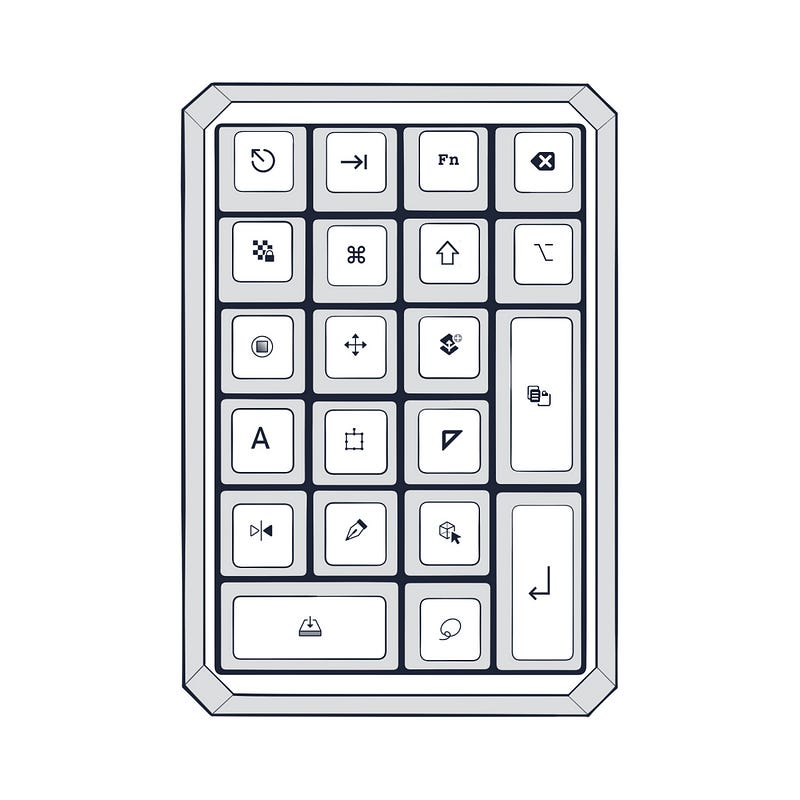
Here’s my process; I build or purchase a keyboard (the latter is much more rewarding, less work). Next, I draw a layout of the keyboard and write in the shortcut combinations i.e. ctrl + alt + d, this helps me memorize things faster. Finally, I program the keyboard with the aforementioned shortcuts, using a combination of QMK, Karabiner Elements, and Keysmith. Voila! Clearly, the process is much more complicated than just BOOM! BAM! BOOM! Done! Don’t fear, an in-depth guide will exist someday.
Final Thoughts
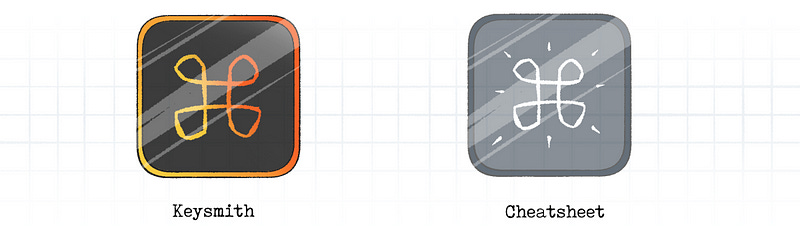
Shortcuts are the lifeblood of productivity as far as I’m concerned. How should you get started on using shortcuts? It depends. Do you want to educate yourself on existing shortcuts within your respective system (macOS or Windows) or do you want to create a customized workflow? If you’re part of the latter group, I recommend Keysmith and AutoHotkey. However, if you are part of the former, I recommend CheatSheet and CheatKey. Respectively, these tools can create customized shortcuts and key binds or show the user which shortcuts are live in any active application. I use Keysmith and CheatSheet since I am a Mac user.